Showing posts with label Blogger Tutorial. Show all posts

Friday, November 22, 2013

Hello Friends I m BACK here with a new tutorial how to diable text selection in blogger its very simple 


Just follow Instructions


1. Go to blogger

2. then LAYOUT Option and the click add a gadget as shown in image below


3. After the a pop up window will open there click on add a HTML/JAVASCRIPT


After the paste Given code in the window which will open after clicking that HTML/JAVASCRIPT
=======================================================================
<script type="text/javascript">
/***********************************************
* Disable select-text script- ©  (www.Techo-tweak.com)
* This notice MUST stay intact for legal use
* Visit http://www.Techno-tweak.com/ for full source code
***********************************************/

//form tags to omit in NS6+:
var omitformtags=["input", "textarea", "select"]

omitformtags=omitformtags.join("|")

function disableselect(e){
if (omitformtags.indexOf(e.target.tagName.toLowerCase())==-1)
return false
}

function reEnable(){
return true
}

if (typeof document.onselectstart!="undefined")
document.onselectstart=new Function ("return false")
else{
document.onmousedown=disableselect
document.onmouseup=reEnable
}

</script>
========================================================================


After pasting above code click on save Button


Thankssssss Don't Forget to give ur valuable comments and Like us on Facebook


Posted on Friday, November 22, 2013 by Unknown


Adding dropdown menu to blogger

Method 1

Step 1: Login to your blogger dashboard.
Step 2: Select your blog and Select Layout option.
Step 3: Select Add a gadget option below header
Step 4: Select HTML/JavaScript widget.
Step 5: In the HTML/JavaScript widget paste following code and save the widget.


Method 2

Step 1: In your blog’s dashboard select Template option.
Step 2: Select Edit HTML option.
Step 3: In the template code find </header>
Step 4: Paste following code just below it and save template.

Code for Dropdown menu

<style>
#navigation{
width:1000px;
height:40px;
display:block;
padding:0;
margin:0 0 22px 0;
margin-left:auto;
margin-right:auto;
background: #45484d; /* Old browsers */
/* IE9 SVG, needs conditional override of 'filter' to 'none' */
background: url(data:image/svg+xml;base64,PD94bWwgdmVyc2lvbj0iMS4wIiA/Pgo8c3ZnIHhtbG5zPSJodHRwOi8vd3d3LnczLm9yZy8yMDAwL3N2ZyIgd2lkdGg9IjEwMCUiIGhlaWdodD0iMTAwJSIgdmlld0JveD0iMCAwIDEgMSIgcHJlc2VydmVBc3BlY3RSYXRpbz0ibm9uZSI+CiAgPGxpbmVhckdyYWRpZW50IGlkPSJncmFkLXVjZ2ctZ2VuZXJhdGVkIiBncmFkaWVudFVuaXRzPSJ1c2VyU3BhY2VPblVzZSIgeDE9IjAlIiB5MT0iMCUiIHgyPSIwJSIgeTI9IjEwMCUiPgogICAgPHN0b3Agb2Zmc2V0PSIwJSIgc3RvcC1jb2xvcj0iIzQ1NDg0ZCIgc3RvcC1vcGFjaXR5PSIxIi8+CiAgICA8c3RvcCBvZmZzZXQ9IjEwMCUiIHN0b3AtY29sb3I9IiMwMDAwMDAiIHN0b3Atb3BhY2l0eT0iMSIvPgogIDwvbGluZWFyR3JhZGllbnQ+CiAgPHJlY3QgeD0iMCIgeT0iMCIgd2lkdGg9IjEiIGhlaWdodD0iMSIgZmlsbD0idXJsKCNncmFkLXVjZ2ctZ2VuZXJhdGVkKSIgLz4KPC9zdmc+);
background: -moz-linear-gradient(top, #45484d 0%, #000000 100%); /* FF3.6+ */
background: -webkit-gradient(linear, left top, left bottom, color-stop(0%,#45484d), color-stop(100%,#000000)); /* Chrome,Safari4+ */
background: -webkit-linear-gradient(top, #45484d 0%,#000000 100%); /* Chrome10+,Safari5.1+ */
background: -o-linear-gradient(top, #45484d 0%,#000000 100%); /* Opera 11.10+ */
background: -ms-linear-gradient(top, #45484d 0%,#000000 100%); /* IE10+ */
background: linear-gradient(to bottom, #45484d 0%,#000000 100%); /* W3C */
filter: progid:DXImageTransform.Microsoft.gradient( startColorstr='#45484d', endColorstr='#000000',GradientType=0 ); /* IE6-8 */


}
#menu{
float:left;
width:740px;
height:40px;
display:block;
padding:0;
margin:0;
}
#menu ul{
float:left;
margin:0;
padding:0;
}
#menu li{
float:left;
list-style:none;
line-height:40px;
margin:0;
padding:0
}

#menu li a, #menu li a:link{
color:#fff;
display:block;
margin:0;
padding:0 10px;
text-decoration:none;
font-family:verdana,arial;
}
#menu li a:hover, #menu li a:active, #menu .current_page_item a {
color:#fff;
padding:0 10px;
background:#00bd39;
border-radius:18px;
}
#menu li li a, #menu li li a:link, #menu li li a:visited{
background: #111111;

color: #fff;
width: 150px;
margin: 0;
padding: 0px 10px;
line-height:30px;
position: relative;
border-bottxom:1px solid #00bd39;
}
#menu li li a:hover, #menu li li a:active {
background:#00bd39;
border-radius:0px;
color: #fff;
}
#menu li ul{
z-index:9999;
position:absolute;
left:-999em;
height:auto;
width:170px;
margin:0px;
padding:0px
}
#menu li:hover ul, #menu li li:hover ul, #menu li li li:hover ul, #menu li.sfhover ul, #topmenu li li.sfhover ul, #topmenu li li li.sfhover ul{
left:auto
}
#menu li:hover, #menu li.sfhover{
position:static
}

/* === Search Form === */
#search {
float:right;
width:230px;
padding:0px 0px ;
margin:9px 10px 0px 0px;
.margin:8px 10px 0px 0px;
background:#fff;
}
#search form {
margin: 0;
padding: 0;
}
#search fieldset {
margin: 0;
padding: 0;
border: none;
}
#search p {
margin: 0;
font-size:12px;
}
#s {
width:180px;
margin:0;
padding:3px 5px;
height:18px;
color:#444;
background:#fff;
float:left;
border:none;
display:inline;
}
input#searchsubmit{
background:url('http://2.bp.blogspot.com/-hTiuEA1yMzQ/UTsummbkmMI/AAAAAAAABbs/CyyGd92XiVM/s1600/searchbu.png');
float:right;
display:inline;
margin:2px 5px 0px 0px;
height:21px;
width:22px;
color:#fff;
border:none;
text-indent:-9999px;
.font-size: 0;
.display:block;
.line-height: 0;
}


</style>

<div id='navigation'>
<div id='menu'>
<ul>
<li>
<a href='#'>
Home
</a>
</li>
<li>
<a href='#'>
Dropdown »
</a>
<ul>
<li>
<a href='#'>
Link1
</a>
</li>
<li>
<a href='#'>
Link2
</a>
</li>
<li>
<a href='#'>
Link3
</a>
</li>
<li>
<a href='#'>
Link4
</a>
</li>
<li>
<a href='#'>
Link5
</a>
</li>
<li>
<a href='#'>
Link6
</a>
</li>
<li>
<a href='#'>
Link7
</a>
</li>
<li>
<a href='#'>
Link8
</a>
</li>
</ul>
</li>
<li>
<a href='#'>
Contact us
</a>
</li>

</ul>
</div>
<div id='search'>
<form action='http://wwwtechno-tweak.com/search/' id='searchform' method='get'>
<input id='s' name='q' onblur='if (this.value == "") {this.value = "Search this site...";}' onfocus='if (this.value == "Search this site...") {this.value = ""}' type='text' value='Search this site...'/>
<input id='searchsubmit' type='submit' value='search'/>
</form>
</div>
</div>

<!--navigation menu with search ends-->

Posted on Friday, November 22, 2013 by Unknown

Tuesday, November 19, 2013

Hello There I am abhinaw with a new tutorial for u

that how to post ur blogger post automatically on ur facebook page well its simple :D

SO what u gonna do is Go to FEEDBURNER.COM after then sign up there with ur blogg address


After then open facebook ur facebook id and on serch box serch for  RSS Graffiti
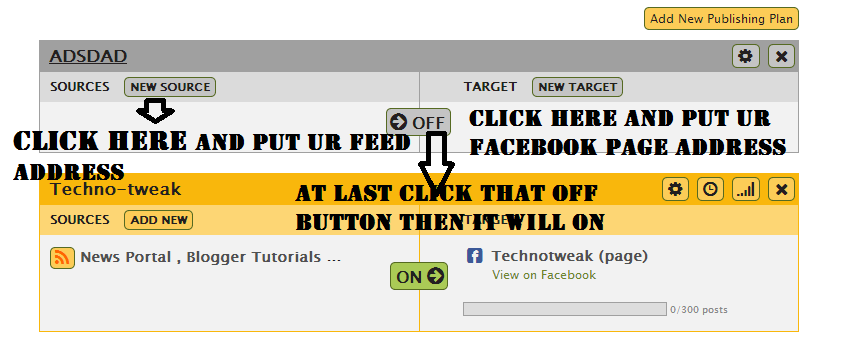
gud after then see image below


After then it will ask name for the plan name it any as u like


after then again go to feed burner.com and get ur feed address look carefully image below


COPY ADDRESS


After Then u will automatically get ur feeds On Facebook page plz do not firget to like us share us and comment below if u got any problem thankssssssssssss


Posted on Tuesday, November 19, 2013 by Unknown


Hello  Friends Welcome On my site

ok now 1st of All open BLOGGER.COM

after then go to TEMPLATE Option

after then go to EDIT HTML

Click there

A new window will open now press CLTR+F there A small serch window will open in upper right corner

type ]]></b there then u will watch it like this image below

It is before senerio when ur attribution is visible


after then copy  #Attribution1 {display: none;} 
copy above highlihted code and paste it just above ]]></b:skin>

AS show in image below

Ur done now  Click Save and enjoy BLOGGING  

Don't Forget To Say Thanks 


Posted on Tuesday, November 19, 2013 by Unknown